

Most articles about moving from WordPress to Webflow were written by Webflow agencies. That is not a conspiracy. It is just economics. Those agencies benefit when you migrate, so their content tends to explain how to migrate rather than whether you should.
This article takes the opposite position. We build in WordPress most of the time, and we still tell roughly one in five prospects to use Webflow instead. We have also told Webflow-curious founders to stay exactly where they are. The framework below will help you make that call before you spend a dollar.
A WordPress to Webflow migration typically costs $3,000 to $25,000 for small to mid-market sites and takes 2 to 8 weeks depending on page count and content complexity. Enterprise migrations run $25,000 to $100,000+. Webflow sites pass Core Web Vitals at approximately 79% versus 46% for WordPress sites overall, per the HTTP Archive CMS technology report (November 2025) — but that gap is almost entirely explained by theme quality and plugin weight on the WordPress side, not the platform itself. The migration is worth doing if your site is under 2,000 CMS items, has no complex plugin dependencies, and your team cannot maintain a WordPress codebase. It is not worth doing if your site runs WooCommerce with custom integrations, has a large content library, or depends on WordPress plugins that have no functional Webflow equivalent.
The Real Question Is Not “How Do I Migrate?” — It’s “Should I?”
Every step-by-step migration guide assumes you have already decided to move. Skip that assumption for a moment.
WordPress powers approximately 43% of the web because it is genuinely flexible. A WordPress site with a well-built custom theme, a stripped-down plugin stack, and a competent developer can match or exceed Webflow on every metric that matters: speed, SEO, editorial flexibility, and long-term cost of ownership. The platform is not the problem. The bloated $20 theme, the 47 active plugins, and the page builder that generates 800 lines of inline CSS are the problem.
Webflow solves those problems by removing the variables. You get a managed hosting environment, clean output, no plugin ecosystem to maintain, and a visual editor that does not require a developer for content changes. That is genuinely valuable. But Webflow also introduces its own constraints, and those constraints determine whether the migration makes sense for your site.
Here is how to work through the go/no-go decision before touching a single redirect.
The Go/No-Go Framework: Four Questions Before You Commit
Question 1: How many CMS items does your site have?
Webflow’s CMS plan supports up to 2,000 collection items. The Business plan raises that ceiling to 10,000. Per Webflow’s published dynamic content limits, you can display up to 100 items per Collection list without enabling pagination, and pages are capped at 40 Collection lists.
If you run a news publication, a job board, a large e-commerce catalog, or a blog with more than a few hundred posts, count your content items before anything else. A WordPress site with 4,000 posts and a custom taxonomy structure cannot be migrated to Webflow’s CMS plan at all, and the Business plan’s 10,000-item ceiling may still be a ceiling you will hit in 18 months.
Question 2: What WordPress plugins are you actually using?
Pull your active plugin list. Then go through it plugin by plugin and ask what it does. Most plugins fall into one of three categories:
- Security and maintenance plugins (Wordfence, UpdraftPlus, Jetpack). Webflow’s managed hosting makes these unnecessary. Migration eliminates the problem.
- SEO plugins (Yoast, RankMath). Webflow has built-in SEO fields that handle title tags, meta descriptions, canonical tags, and sitemaps. Not as granular as RankMath, but functional for most sites.
- Functionality plugins that extend WordPress in ways Webflow cannot replicate. This is the category that kills migrations. Examples: WooCommerce with custom shipping logic, membership plugins like MemberPress or Restrict Content Pro, complex form integrations, event management systems, LMS platforms like LearnDash, multi-language plugins like WPML. If your site depends on any of these, Webflow either has no native equivalent or requires a paid third-party workaround that adds back the same maintenance complexity you were trying to escape.
Question 3: Does your team need to edit content without a developer?
This is where Webflow wins most clearly. WordPress’s block editor (Gutenberg) is more capable than it was in 2020, but it still allows editors to break layouts by pasting content from Google Docs, applying inline styles, or uploading images at the wrong dimensions. Webflow’s Editor locks the design and only exposes the fields you define. If your marketing team is spending two hours a week fixing WordPress formatting problems, that is a real and recurring cost.
The counterpoint: Webflow’s Editor is simpler, but it is also less flexible. If your editors need to create new page types, add custom embeds, or publish content in formats outside the defined collection structure, they will hit walls. Assess your actual editing workflow, not a hypothetical one.
Question 4: Do you have a WooCommerce store?
If yes, the answer is almost certainly “stay on WordPress.” Webflow Ecommerce exists, but it is a limited product compared to WooCommerce. It lacks the shipping integrations, inventory management, tax configuration options, and third-party payment gateway support that a real e-commerce operation requires. Shopify is a better migration target for stores.
The Performance Case: What the Data Actually Shows
The claim that Webflow is faster than WordPress is partially true, partially misleading, and worth unpacking with actual numbers.
According to the HTTP Archive CMS technology report (November 2025), Core Web Vitals pass rates are approximately 79% on Webflow versus approximately 46% on WordPress across all origins. That is a 33-percentage-point gap, and it is real. But the cause is not the platform itself. It is the WordPress ecosystem.
A WordPress site running a bloated page builder theme with 40+ plugins, unoptimized images, and no caching layer will fail Core Web Vitals on LCP and CLS almost every time. A WordPress site built with a clean custom theme, Cloudflare for caching, and WebP images will pass.
Webflow’s structural advantage is that it is harder to build a slow site by accident. You cannot install a plugin that adds 500KB of JavaScript to every page. The CDN is built in. Image handling is managed. The output is cleaner HTML by default. That is a meaningful operational advantage for teams without a performance-focused developer on staff.
The three Core Web Vitals metrics Google uses as a ranking signal are Largest Contentful Paint (loading performance, target under 2.5 seconds), Interaction to Next Paint (responsiveness, target under 200 milliseconds), and Cumulative Layout Shift (visual stability, target CLS score under 0.1). Per PageSpeed Matters’ analysis of 13.75 million origins using the May 2026 CrUX release, only 49.1% of the mobile web passes all three. LCP is the most common failure point at 64.4% good on mobile. If your current WordPress site already passes Core Web Vitals, performance is not a compelling migration reason. If it fails primarily on LCP, the cause is almost certainly fixable in WordPress without a platform change.
What a WordPress to Webflow Migration Actually Costs
Pricing on this is scattered across agency sites, most of which are incentivized to quote the low end. Here is an honest range, organized by site size:
| Site Type | Page Count | Typical Timeline | Market Cost Range |
| Brochure / portfolio site | 5 to 20 pages | 2 to 4 weeks | $3,000 to $8,000 |
| Small business site | 20 to 50 pages | 3 to 5 weeks | $6,000 to $15,000 |
| Mid-market site with CMS content | 50 to 200 pages | 4 to 8 weeks | $12,000 to $25,000 |
| Content-heavy or complex integration | 200+ pages or custom logic | 8 to 16+ weeks | $25,000 to $100,000+ |
The spread within each range is driven by three factors: the number of unique page templates that need to be rebuilt in Webflow, whether existing content must be manually cleaned and reformatted before import, and the complexity of the redirect map. A 50-page site where every page uses the same template costs a fraction of a 50-page site where 30 pages have unique layouts.
A note on what agencies often omit from quotes: SEO work. A clean migration without traffic loss requires a full URL audit, a redirect map covering every indexed URL, XML sitemap resubmission to Google Search Console, and post-launch monitoring for at least 4 to 6 weeks. That work adds $1,500 to $4,000 to the project cost at responsible agencies. If an agency quotes you a migration without mentioning any of this, ask specifically what the SEO scope includes.
The SEO Risk Section Most Guides Get Wrong
Every migration guide says “set up 301 redirects.” That is necessary but not sufficient. Here is what actually happens to your rankings after migration and how to read it correctly.
When you push a migrated site live, Google needs to recrawl and re-evaluate every URL. The Chrome User Experience Report data that feeds Core Web Vitals rankings updates on a rolling 28-day window. That means even if your new Webflow site is faster, Google will not register that improvement for four weeks after launch. In the meantime, it is evaluating the new site against the old field data. A ranking dip in the first 4 to 6 weeks post-migration is normal and does not mean something went wrong. Panicking and rolling back during that window is often the actual mistake.
What does mean something went wrong: a ranking drop that extends past 8 weeks with no recovery trend. The causes are almost always traceable to one of four things — missing 301 redirects on crawled URLs, a robots.txt that is blocking Googlebot from indexing the new site, a sitemap that was not submitted to Search Console, or content that changed substantially enough that Google no longer considers the page relevant to its previous queries.
Webflow’s official SEO migration checklist at webflow.com/blog/seo-checklist-for-site-migration covers the technical steps. The most commonly skipped item is benchmarking. Before migration, export your current keyword rankings, organic traffic by page, and top backlinks. You cannot diagnose a post-migration traffic problem without a pre-migration baseline to compare against.
The Five Migration Steps That Actually Determine Outcome
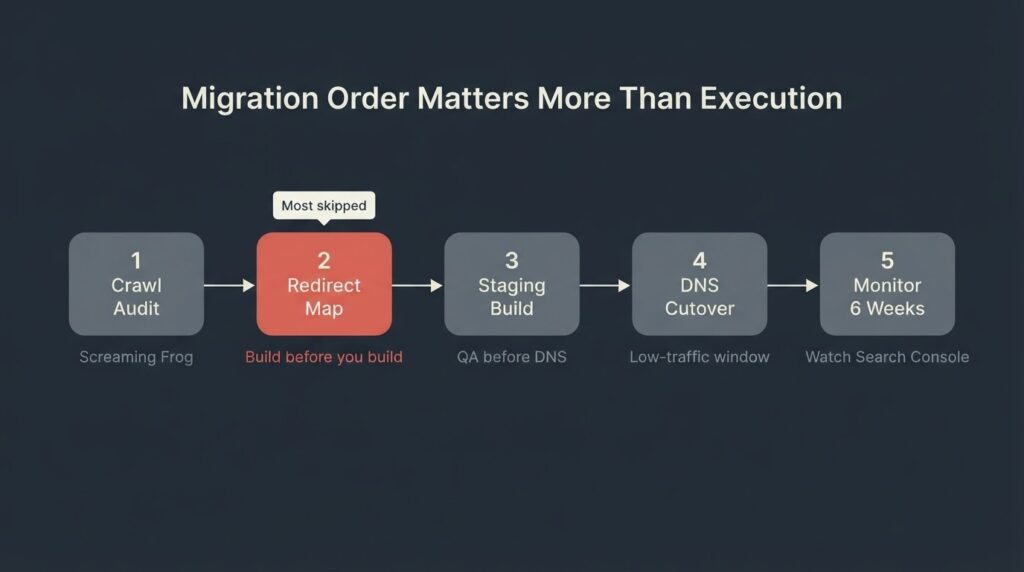
Once you have decided to proceed, the order of operations matters more than the technical execution of any single step.
Step 1: Crawl and audit before you build anything. Use Screaming Frog or a similar crawler to export every live URL, its status code, its title tag, its meta description, and its inbound link count. This is your source of truth. The audit will surface duplicate pages, redirect chains, 404s that already exist, and pages with no organic traffic that do not need to be migrated at all.
Step 2: Build the redirect map as a spreadsheet. Map every old URL to a new URL before a single Webflow page is created. Migrating first and redirecting later is how redirect mistakes happen. The map should include every URL that has any indexed pages, any inbound links, or any organic traffic — even if it is small.
Step 3: Build and test in a Webflow staging environment before DNS cutover. Webflow allows you to build and preview a full site before pointing your domain. Use that window to run a full QA pass: check every redirect in the map, test every form, verify that all CMS collections are importing correctly, and run a Lighthouse test on your most important pages.
Step 4: Go live during low-traffic hours and resubmit your sitemap immediately. Post-launch, submit the new XML sitemap to Google Search Console and use the URL Inspection tool to request indexing for your five most important pages. Do not wait for Google to discover them passively.
Step 5: Monitor for 6 weeks with a defined check protocol. Daily checks in the first week: are priority pages returning 200 status codes? Are there new 404 errors appearing in Search Console? Weekly from week 2 to week 6: compare organic traffic and ranking positions against your pre-migration benchmark. The 2024 Web Almanac from HTTP Archive documents that all major CMS platforms improved their Core Web Vitals year-over-year, but those gains only show in field data after the CrUX window turns over.
Our team at BetaTech spans the US and Bangladesh, which is worth mentioning in this context: when a client launches a migration at the end of a US business day, the Bangladesh side of the team picks up monitoring and early issue identification before the next US morning. For a 48-hour post-launch window where a redirect error or a blocked robots.txt can quietly eat days of SEO recovery, that time zone overlap is operationally useful.
The Cases Where You Should Stay on WordPress
We said we would say this, so here it is plainly.
Do not migrate to Webflow if your site runs a WooCommerce store with custom shipping, payment, or tax logic. Do not migrate if your content library has more than a few thousand items and your editorial workflow depends on WordPress’s post type system. Do not migrate if your site integrates with a marketing automation platform, CRM, or membership system through a WordPress plugin that Webflow cannot replicate natively. Do not migrate if your current WordPress site already passes Core Web Vitals and your SEO trajectory is positive. Do not migrate if the only reason you are considering it is that your current site looks dated — a design refresh within WordPress or a custom theme rebuild costs a fraction of a full platform migration and carries no SEO risk.
Webflow is the better call when: your site is under 50 pages with no complex functionality, your team needs to edit content without developer involvement, your current WordPress site fails Core Web Vitals primarily because of plugin bloat or theme weight, and you do not depend on any WordPress plugin that has no Webflow equivalent. [INTERNAL LINK: talk through your migration scope → https://betatech.co/contact-us/]
FAQ
How long does a WordPress to Webflow migration take?
Small sites under 20 pages typically migrate in 2 to 4 weeks. Mid-market sites with 50 to 200 pages and an existing CMS content library take 4 to 8 weeks with proper SEO work included. Enterprise migrations involving complex content architecture, custom integrations, or extensive redirect mapping run 3 to 6 months. Timeline is primarily driven by the number of unique page templates and how much content requires manual reformatting before it can be imported into Webflow’s CMS collections.
Will I lose my Google rankings when I migrate from WordPress to Webflow?
A temporary ranking fluctuation in the first 4 to 6 weeks is normal and expected during any platform migration. It is not a sign of permanent damage. What causes lasting ranking loss is missing or incorrect 301 redirects, a sitemap that was not resubmitted to Google Search Console, or content that changed substantially during the rebuild. A migration with a complete redirect map, unchanged content, and a resubmitted sitemap typically recovers and stabilizes within 6 to 8 weeks of launch.
What WordPress plugins have no equivalent in Webflow?
The most significant gaps are e-commerce (WooCommerce has no native Webflow equivalent with comparable depth), membership and access control (MemberPress, Restrict Content Pro), learning management (LearnDash), multilingual content management (WPML has no Webflow equivalent — Webflow handles localization through its paid Localization feature, which works differently), and complex event management systems. Basic SEO, contact forms, image optimization, and caching are either built into Webflow or handled by the platform by default.
How much does a WordPress to Webflow migration cost?
Market rates for agencies range from $3,000 to $8,000 for small brochure sites, $12,000 to $25,000 for mid-market sites with existing CMS content, and $25,000 to $100,000+ for complex or content-heavy migrations. Those figures should include SEO work — a redirect audit, redirect map, Search Console resubmission, and post-launch monitoring. If an agency quote does not break out SEO scope, ask for it specifically. The cost drivers are the number of unique page templates, the volume of content requiring manual reformatting, and the complexity of the redirect map.
Is Webflow better than WordPress for SEO?
At a platform level, Webflow’s default SEO setup is solid: clean HTML output, global CDN, built-in sitemap generation, and meta field control per page. WordPress with a well-configured SEO plugin like RankMath or Yoast offers more granular control, including schema markup, breadcrumb configuration, and more advanced redirect handling. The CWV performance gap favoring Webflow is real but largely attributable to the quality of the WordPress build, not the platform itself. A clean custom WordPress theme with a light plugin stack will perform comparably to Webflow on Core Web Vitals.
Can I import my WordPress blog posts into Webflow?
Yes, partially. WordPress exports content in XML format. You can convert that to a CSV and import it into a Webflow CMS Collection. The process works cleanly for simple blog posts with title, body, and featured image. It gets messier with custom field data, complex taxonomies, embedded shortcodes, or content created with page builders like Elementor or Divi — those posts often need manual cleanup before they will render correctly in Webflow. Budget extra time for content migration if your posts contain anything beyond standard WordPress blocks.
If you want a clear-eyed scope of what your migration actually involves — or a second opinion on whether it makes sense at all — send us the basics of your current site and we will give you a straight answer.