
WordPress runs approximately 43% of all websites on the internet. That market share is also a target. In 2025, security researchers recorded 11,334 new vulnerabilities across the WordPress ecosystem — a 42% jump over the prior year. If your site is on WordPress and you have not reviewed your security configuration in the last 12 months, the question is not whether your attack surface is real. It is whether anyone has already found it.
This article explains what attackers actually exploit, what a hardened WordPress installation includes, and how to decide which steps you can manage yourself versus which ones are worth paying for.
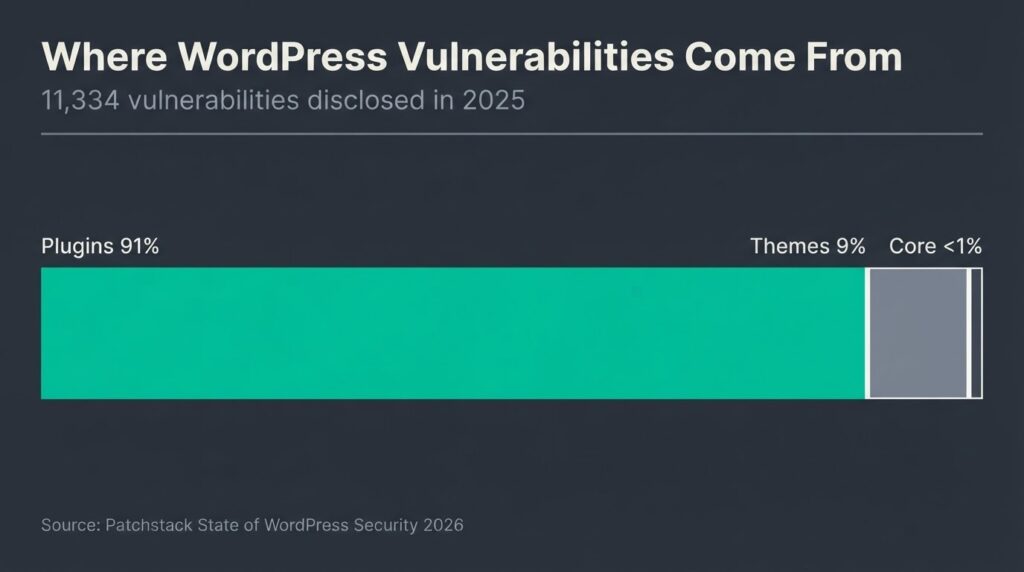
WordPress security hardening is the process of modifying your site’s default configuration to reduce the number of ways an attacker can access, compromise, or abuse it. The most common entry points are vulnerable plugins (responsible for 91% of 2025 WordPress vulnerabilities per Patchstack), weak or unprotected login credentials, and misconfigured file permissions. A properly hardened site applies server-level protections, restricts admin access, enforces two-factor authentication, removes unnecessary attack surfaces like XML-RPC, and has an offsite backup system that runs on an automated schedule independent of the host.
Why “Just Install a Security Plugin” Is an Incomplete Answer
Most WordPress security advice ends with a plugin recommendation. Install Wordfence. Install Patchstack. Turn on the scanner and you are done. That advice is not wrong — those tools are genuinely useful — but it skips the more important question: what does the plugin layer actually protect?
A security plugin is a detection and response layer. It scans for known malware signatures, blocks suspicious login attempts, and alerts you when something looks wrong. What it does not do is fix an insecure server configuration, close an unpatched plugin vulnerability before the patch exists, or protect your database if your wp-config.php is readable by the wrong process. The Patchstack 2026 research found that standard hosting-layer defenses block only 26% of WordPress-specific vulnerability exploits — including the internal WAFs that managed hosts advertise as a security feature. The plugin layer adds coverage, but it sits on top of a configuration that you still need to get right.
Hardening means addressing the configuration layer first. Then adding detection and response tools on top of it.
The Real Attack Surface: Where 91% of Breaches Start
The official WordPress security documentation identifies a consistent set of entry points, and the 2025 vulnerability data confirms the pattern: plugins are the dominant risk. Of the 11,334 new vulnerabilities disclosed in 2025, 91% were in plugins and 9% in themes. Only 6 were found in WordPress core itself.
Here is what makes the plugin problem harder to manage than it sounds: 46% of those vulnerabilities had no available patch at the time of public disclosure. That means updating your plugins regularly, while still necessary, is not a sufficient defense. A plugin you updated last week may have a known, unpatched vulnerability today. The weighted median time from public disclosure to active mass exploitation for high-impact vulnerabilities is 5 hours. You will not see a patch in that window. The hardening steps that close off the pathways attackers use to exploit those vulnerabilities — file write restrictions, input sanitization, limited user privileges — matter precisely because you cannot always rely on a patch existing when you need one.
The second most common entry point is the login page. WordPress does not limit login attempts by default. An attacker can run automated credential-stuffing scripts against /wp-login.php indefinitely without any system-level intervention unless you have explicitly configured rate limiting or a lockout policy. The third is XML-RPC — a legacy remote-access protocol that most modern WordPress installations do not use but that remains enabled by default, providing an alternative login pathway that bypasses some standard rate-limiting configurations.
Understanding these three entry points — unpatched plugin vulnerabilities, an unprotected login page, and enabled XML-RPC — shapes the priority order of everything that follows.
The 12-Step WordPress Security Hardening Checklist
This table covers the configuration changes that meaningfully reduce your attack surface.
They are ordered by impact, not complexity. Steps 1 through 5 are the ones most sites skip. Steps 6 through 12 are what separates a hardened site from one that just has a security plugin running.
| # | Hardening Step | What It Closes | DIY or Professional | Approximate Time |
| 1 | Enable 2FA on all admin accounts | Credential theft via brute force | DIY (plugin-based) | 15 min |
| 2 | Disable XML-RPC (if not actively used) | Alternative brute force login pathway | DIY (.htaccess rule) | 10 min |
| 3 | Lock down wp-config.php (permissions 400 or 440; move above webroot) | Config file exposure | Professional recommended | 20 min |
| 4 | Set correct file permissions (644 files, 755 directories) | Unauthorized file modification | Professional recommended | 30 min |
| 5 | Install and configure a WAF/security plugin (Wordfence, Patchstack, or Shield) | Malware scanning, login throttling, known-exploit blocking | DIY (free tier available) | 45 min |
| 6 | Implement HTTP security headers (HSTS, X-Frame-Options, X-Content-Type-Options, CSP) | Clickjacking, MIME sniffing, XSS injection | Professional recommended | 30 min |
| 7 | Disable PHP execution in /wp-content/uploads/ | Remote code execution via uploaded malware | Professional (.htaccess or server config) | 15 min |
| 8 | Enforce HTTPS site-wide and define FORCE_SSL_ADMIN in wp-config.php | Traffic interception, admin session hijacking | DIY (with SSL cert active) | 15 min |
| 9 | Remove default “admin” username; apply least-privilege user roles | Privilege escalation | DIY | 20 min |
| 10 | Hide WordPress version number and disable directory listing | Reconnaissance / version-specific exploit targeting | Professional (.htaccess + theme functions.php) | 20 min |
| 11 | Set up automated offsite backups (daily for active sites, weekly minimum) | Ransomware, catastrophic file corruption, accidental deletion | DIY or managed | 30 min setup |
| 12 | Apply plugin/theme update hygiene: auto-updates for low-risk, manual review cadence for high-complexity | Unpatched vulnerability exploitation | Ongoing operational process | 1 hr/month |
Deep Cuts: The Steps Most Guides Skip
wp-config.php hardening. This file contains your database credentials, secret keys, and a set of PHP constants that directly control your site’s security posture. Three specific additions matter most. First, define(‘DISALLOW_FILE_EDIT’, true) disables the built-in theme and plugin file editor inside the WordPress dashboard — the one an attacker uses to inject code the moment they gain admin access. Second, define(‘FORCE_SSL_ADMIN’, true) ensures that admin sessions are never transmitted over unencrypted HTTP, even if a user somehow navigates to the HTTP version of your login page. Third, moving the wp-config.php file one directory above your WordPress webroot means that even if your web server is misconfigured to serve PHP source files as plain text, this file is out of reach.
Security headers. HTTP security headers are instructions your server sends to the browser to restrict what the page can do — which scripts it can execute, whether it can be embedded in an iframe on another site, and whether the browser should strip down to HTTPS automatically. The full implementation guide for WordPress security headers covers the five most critical ones: Strict-Transport-Security, X-Frame-Options: SAMEORIGIN, X-Content-Type-Options: nosniff, Referrer-Policy, and Content-Security-Policy. Most WordPress sites have none of these configured. Adding them takes less than an hour and closes a class of browser-level attacks that no security plugin can intercept after the fact.
XML-RPC. WordPress introduced the REST API in version 4.4, released in 2015. XML-RPC has been functionally redundant for most installations since then. If you are not using Jetpack’s remote sync, a mobile WordPress app, or a specific API integration that requires XML-RPC, the correct move is to block access to xmlrpc.php entirely via your .htaccess file or your CDN’s firewall rules. Leaving it enabled is not a neutral decision; it is an active attack surface.
The Backup Question: What “Good” Actually Means
A backup strategy that backs up to the same server your site runs on is not a backup strategy. If the server is compromised, the backup is compromised with it. If the server’s storage fails, both go together. A functional backup setup for a business WordPress site has three properties: it runs automatically without manual intervention, it writes to a destination physically separate from your hosting account (an S3 bucket, Google Drive, or a dedicated backup service like UpdraftPlus connected to off-site storage), and it is tested. A backup you have never restored from is a backup you have never confirmed works.
For WooCommerce sites or any site processing customer data, daily backups are the minimum. For a mostly static brochure site with no transactional data, weekly is defensible. For anything running a membership system, the answer is daily with a 30-day retention window.
What a Hack Actually Costs
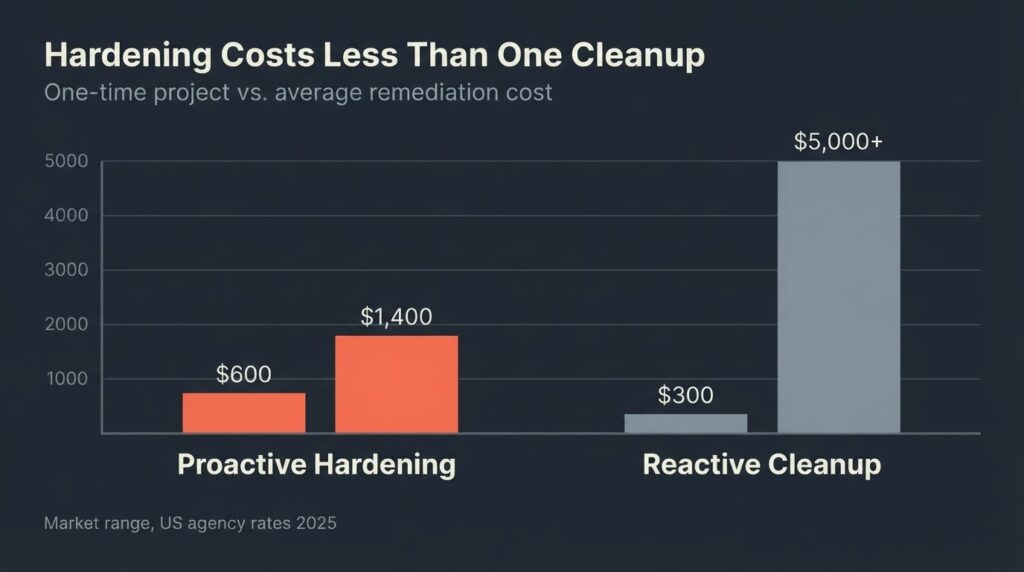
Professional malware removal for a straightforward WordPress infection runs $200 to $500 from a qualified developer. If the infection has spread to the database, installed backdoors that survive a file cleanup, or triggered Google Safe Browsing blacklisting, the range climbs to $1,500 to $5,000. That cost does not include the revenue lost while the site is down or flagged, the SEO recovery time after a blacklisting event (typically 2 to 6 weeks of depressed organic traffic), or the reputational cost to customers who encountered a phishing redirect. A hack that takes your WooCommerce store offline for 48 hours at the wrong moment may cost more than a year of maintenance contracts.
The NIST Cybersecurity Framework 2.0 for small businesses emphasizes that the cost calculus for security should be framed as risk reduction, not as a direct comparison to the probability of being targeted. NIST’s SMB cybersecurity resources are genuinely useful for any business owner who needs to frame security investment to a board or an operations team that does not want to spend money on something that “hasn’t happened yet.”
The proactive hardening steps in this article — the full 12 — run about 6 to 8 hours of professional developer time for a typical WordPress business site. At standard US agency rates of $100 to $175/hour, that is $600 to $1,400 as a one-time project. That math is not complicated.
Managed Hosting Is Not the Same as a Hardened Site
Managed WordPress hosts — WP Engine, Kinsta, Cloudways, Pressable — do real work at the server level. They apply OS patches, maintain updated PHP versions, enforce SFTP/SSH-only file access, and run server-side malware scanning. That is legitimate value and it is worth paying for over shared hosting.
What it is not is a substitute for application-level hardening. Your theme’s PHP execution permissions, your wp-config.php constants, your HTTP security headers, your admin login configuration, and your plugin update hygiene live at the WordPress application layer. Managed hosts do not configure those for you. They secure the box. You still need to secure what runs inside it.
This distinction matters because business owners are frequently told — sometimes by their host, sometimes by a developer trying to close a managed hosting upsell — that moving to managed hosting “handles security.” It handles part of it. The application layer is still your responsibility.
When to Handle This Yourself and When to Hire
Some of the 12 steps in the table above are straightforward DIY: enabling 2FA takes 15 minutes and a free authenticator app, removing the default “admin” username requires only standard WordPress user management, and enabling HTTPS with FORCE_SSL_ADMIN is a two-line wp-config.php edit once your SSL certificate is active.
Others carry real risk if done incorrectly. Setting file permissions wrong can lock yourself out of your own admin panel. Misconfiguring a Content Security Policy can silently break your site’s JavaScript — forms stop working, checkout flows fail, analytics go dark — and the failure is not always obvious. Moving wp-config.php above the webroot requires that your hosting configuration actually supports it, and not all shared hosts do.
The practical split: steps 1, 2, 8, 9, and 12 from the table are DIY-appropriate for a technically comfortable non-developer. Steps 3, 4, 6, 7, and 10 are worth professional handling, or at minimum professional review after you have made the change.
We do most of our WordPress builds with this configuration applied from the start rather than as a retrofit. That is not a sales pitch — it is a quality control argument. A security hardening retrofit on an existing site is almost always more expensive than building the configuration correctly the first time, because you are working around a live environment with real users and existing third-party integrations that may break when you tighten permissions. Retro-fitting also means auditing what is already installed, which adds discovery time.
The WPScan hardening reference covers 26 discrete steps with technical depth, and it is a useful validation checklist if you have already completed the core 12 and want to go further. WPScan is also the vulnerability database that Wordfence, Patchstack, and most other security tools draw from — so their editorial perspective on what matters is grounded in real exploit data.
Wordfence, Patchstack, Shield: How to Choose
All three are legitimate tools. The differences are architectural and pricing-model-based, not a question of which one is “best.”
Wordfence runs as an endpoint firewall — it operates at the PHP application layer, meaning it intercepts requests after they have already reached your server. This gives it deep visibility into WordPress-specific traffic but means that high-volume attacks still consume server resources before being blocked. The free tier covers most small business needs; the paid tier ($119/year per site) gives you real-time threat intelligence rather than rules delayed by 30 days. Wordfence’s documentation on brute force protection configuration is the most detailed available for non-technical site owners.
Patchstack operates differently: it deploys virtual patches — PHP rules that neutralize a specific vulnerability’s exploit path — at the moment of disclosure, before the plugin developer ships an official fix. This is the tool that matters most for the “46% of vulnerabilities with no patch available” problem. The free community tier covers monitoring and alerts; the paid tier ($99 to $499/year) includes active virtual patching.
Shield Security is a good mid-option for agencies managing multiple sites, with a strong free tier and granular control without the UI complexity of Wordfence.
The honest answer: for a WooCommerce store or any site handling customer data, Patchstack’s virtual patching model addresses the gap that plugin updates alone cannot close. For everything else, Wordfence’s free tier combined with the hardening configuration above is a defensible starting point.
FAQ
What is WordPress security hardening and why does it matter for my business?
WordPress security hardening is the process of modifying your site’s default configuration to reduce the number of ways an attacker can access or compromise it. It matters for your business because the default WordPress installation — out of the box — leaves several known attack surfaces open: the login page has no rate limiting, XML-RPC is enabled, file permissions may be too permissive, and wp-config.php may be accessible. A hardened site closes those specific gaps before an attacker finds them.
Should I disable XML-RPC on my WordPress site?
For most business websites, yes. XML-RPC is a legacy remote-access protocol that modern WordPress no longer needs for its core functionality. Unless you are using Jetpack’s remote management features, a mobile WordPress app, or a specific third-party integration that requires it, XML-RPC is an active attack surface with no current business justification. Block access to xmlrpc.php in your .htaccess file and verify the block is working with a simple HTTP request test.
Is a security plugin enough, or do I need a developer to harden my WordPress site?
A security plugin is a detection and response layer — it catches known malware, limits login attempts, and alerts you when something looks wrong. It does not fix an insecure server configuration, and it cannot patch a plugin vulnerability before the vendor ships a fix. For a standard business site, 6 to 8 of the 12 hardening steps in this article require server-level or file-system-level access that goes beyond what a plugin can manage. A security plugin is a necessary component of your configuration, not a replacement for it.
How much does professional WordPress security hardening cost?
A one-time professional hardening engagement for a typical WordPress business site runs $600 to $1,400 at standard US agency rates, covering configuration review, wp-config.php hardening, file permissions correction, HTTP security header implementation, login protection setup, and documentation. Ongoing monitoring or a maintenance retainer adds $50 to $200/month depending on scope. Compare that to a reactive malware cleanup, which runs $200 to $500 for a simple infection and $1,500 to $5,000 for a database-level compromise.
Does my managed WordPress host handle security for me?
Partially. Managed hosts like WP Engine, Kinsta, and Cloudways handle server-level security: OS patching, updated PHP, server-side malware scanning, and restricted file access protocols. They do not configure your application layer — your wp-config.php constants, your HTTP security headers, your admin login settings, or your plugin update process. Those are your responsibility regardless of which host you use.
How often should I review my WordPress security configuration?
The configuration steps in this article are largely one-time changes. The ongoing maintenance is an operational habit: run a monthly plugin/theme update audit, verify your backup files are restoring correctly every quarter, and run a security scan after any major plugin install or theme change. If your site processes customer data, schedule a formal security review annually with a qualified developer.
The Step That Costs Nothing and Protects the Most
Two-factor authentication on every admin account. It takes 15 minutes, it uses a free app, and it eliminates the most reliable attack vector against a WordPress login page — credential stuffing with a breached password list. Everything else in this article is a legitimate improvement. This one is the minimum floor.
If you want a professional eye on your current configuration — not a sales call, a technical review of what is actually in place — talk to the BetaTech team. We will tell you what your site has, what it is missing, and what it would take to close the gaps. If your setup is already solid, we will tell you that too.