

Squarespace is a reasonable starting point for a business website. At some point, though, the ceiling shows up: your SEO consultant says schema markup isn’t possible, your e-commerce fees are compounding, or your developer quotes you a day of work just to add a custom field. That’s the moment people start searching for this guide.
The migration itself is manageable. The part that trips people up is the SEO, the content gaps, and the cost estimates that turn out to be wrong. This article covers all three, with real numbers.
Migrating from Squarespace to WordPress involves exporting your content as an XML file, setting up WordPress hosting, importing the XML, manually retrieving images (they do not transfer automatically), and implementing 301 redirects for every URL that changes. A professionally managed migration for a standard 20-to-50 page business site typically costs $800 to $3,500 depending on content volume and whether a custom theme is included. Expect a two-to-six week Google re-indexing period after launch; with proper 301 redirects, permanent link equity is not lost.
Why People Actually Leave Squarespace
Squarespace does a few things well. It ships fast, looks polished out of the box, and requires no hosting decisions. For a brochure site with under fifteen pages, there is a real argument for staying.
The problems tend to surface in three areas. First, the SEO ceiling. Squarespace’s built-in SEO tools handle meta titles and descriptions, but they do not support graph-based schema nesting, programmatic structured data, or the plugin-level control that tools like Rank Math SEO on WordPress.org deliver. If you are running a service business that needs FAQ schema, local business markup, or product rich results, Squarespace puts a hard ceiling on what you can implement.
Second, e-commerce economics. Squarespace’s current pricing starts at $192/year for Basic and goes to $780/year for Advanced. The two lowest tiers, Basic and Core ($276/year), charge a 3% platform transaction fee on top of payment processor fees. That math matters: a store doing $10,000 per month in revenue pays $300/month in platform fees alone, before Stripe or PayPal takes their cut. WooCommerce charges no platform transaction fee.
Third, content flexibility. Squarespace’s block system is intentionally constrained. Once your site needs custom post types, complex data relationships, or any integration that doesn’t exist in Squarespace’s extension library, you are building workarounds instead of solutions.
None of these are reasons to migrate hastily. They are reasons to know the tradeoffs before you decide.
What the Squarespace Export Actually Gives You (And What It Doesn’t)
This is the section most migration guides treat in a single line. It deserves more.
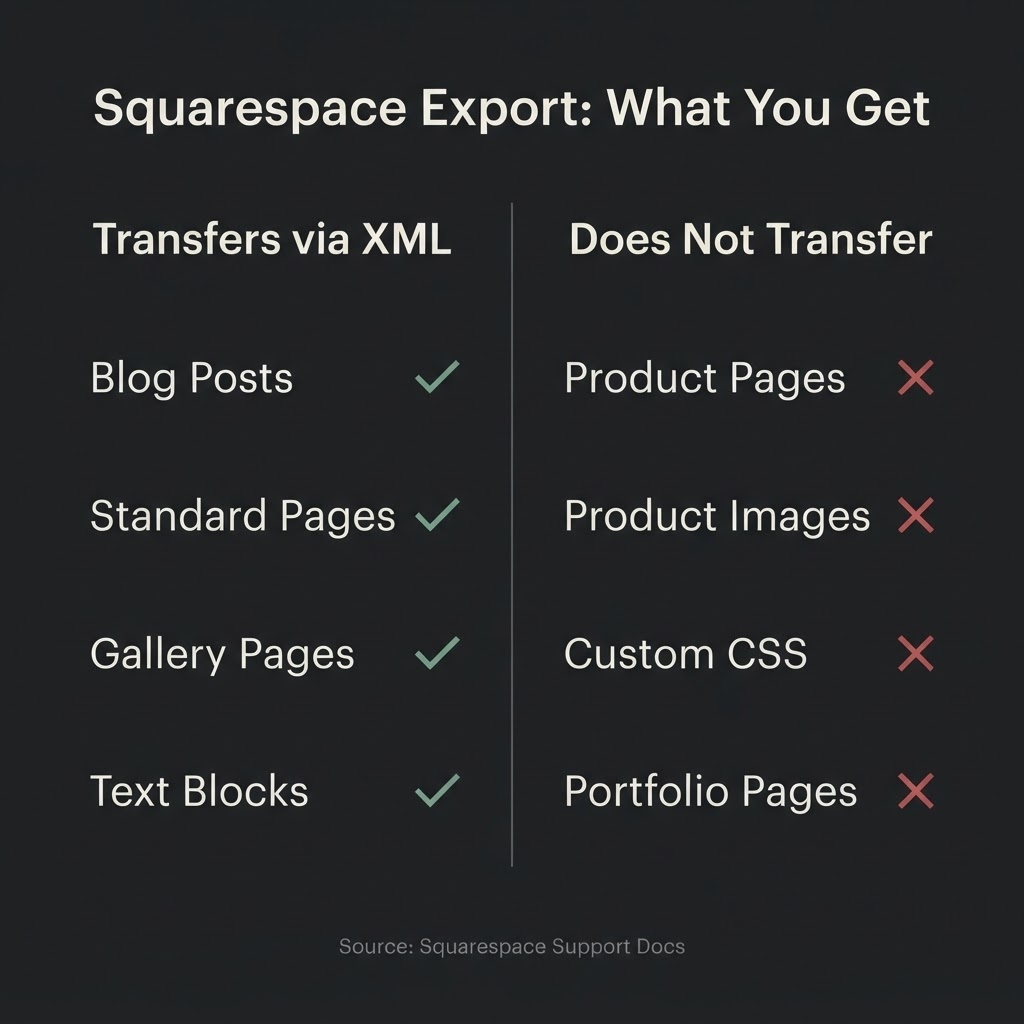
Squarespace allows you to export your site content as an XML file through Settings > Advanced > Import/Export. According to Squarespace’s own export documentation, the following content types transfer:
- Blog posts and pages
- Gallery pages
- Text blocks and embed blocks
- The main blog index page
The following do not transfer via XML export:
- Product pages and product images (for any Squarespace store)
- Audio and video files
- Custom CSS
- Portfolio and events pages
- Gallery images embedded in non-gallery contexts
- Form submission data
- Member areas content
Images attached to blog posts and pages are referenced by URL in the XML file, but they are not packaged into it. You will need a plugin like Auto Upload Images in WordPress to fetch them from those Squarespace-hosted URLs after import. If you do not do this before you cancel your Squarespace subscription, those image URLs go dead.
For a blog-heavy site with minimal e-commerce, the export is a reasonable starting point. For a store with 200+ products, the XML export covers almost none of your core content. You are looking at a manual rebuild or a CSV import workflow for each product category.
The SEO Stakes: What Breaks, What Doesn’t, and Why
This is the anxiety at the center of every migration conversation. Here is the direct answer: if you set up 301 redirects correctly, you do not lose your link equity. If you do not set them up, you lose rankings fast and rebuilding takes months.
The mechanism works like this. Your Squarespace URLs typically follow a structure like yoursite.com/blog/post-title. WordPress, depending on how you set up permalinks, may produce a different path or the same one. Where the paths differ, every page that no longer exists at its old URL returns a 404 error. Google treats that as a broken page, link equity stops flowing to it, and rankings drop.
The fix is a server-side 301 redirect from every old URL to its new equivalent. Google Search Central’s site migration guide recommends keeping those redirects active for at least one year post-migration, so that Googlebot can recrawl old URLs and pass their accumulated authority to the new destinations. Google explicitly states that 301 redirects do not cause a loss in PageRank.
There is a practical window to set expectations around. A medium-sized site of 50 to 200 pages typically takes a few weeks for most pages to re-index after a URL-changing migration. During this period you may see traffic fluctuate. This is normal. It is not a sign the migration failed.
The additional SEO tasks you need to complete before launch:
- Update your XML sitemap to reflect new URLs and submit it in Google Search Console
- Set canonical tags on all new WordPress pages to their own URLs (most SEO plugins handle this automatically)
- Verify your WordPress site in Search Console and use the Change of Address tool if your domain is changing
- Check that your robots.txt does not block Googlebot from crawling the new WordPress install
One more consideration: after migration, your WordPress site’s Core Web Vitals depend on how it is built and hosted, not on the platform alone. The 2024 HTTP Archive Web Almanac CMS chapter shows Squarespace improved its mobile Core Web Vitals pass rate by 28% year-over-year to 60% in 2024.
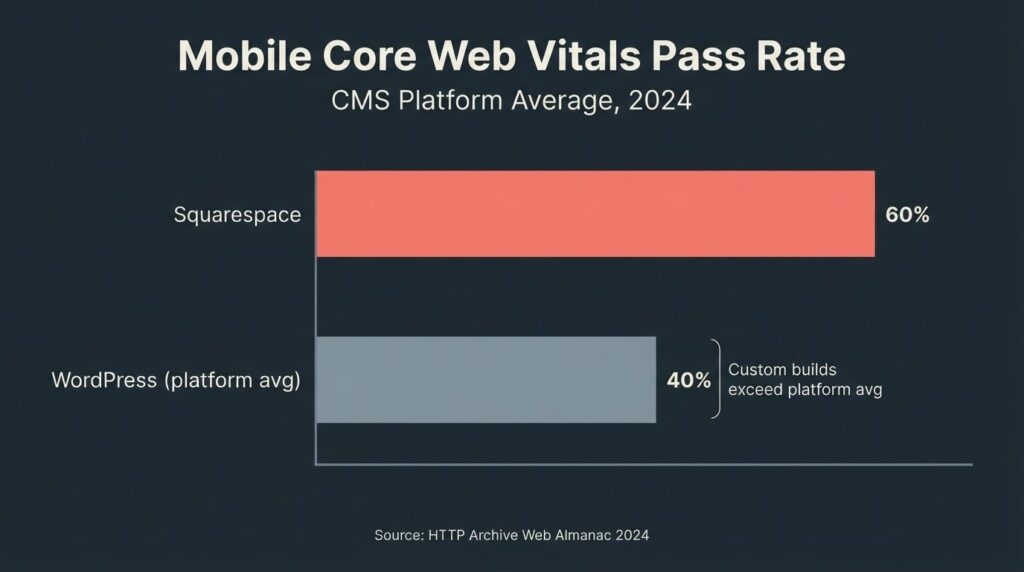
WordPress as a platform averaged 40% on mobile. Those numbers reflect the full range of WordPress sites, including poorly built ones. A WordPress site built with a lightweight custom theme, proper image optimization, and managed hosting can achieve well above the Squarespace average. The platform sets a floor, not a ceiling.
Migration Cost: What It Actually Costs to Do This Right
| Scenario | Scope | Estimated Cost Range | Timeline |
| DIY (tech-comfortable founder) | XML import, manual image fetch, theme selection, redirect setup | $50 to $200 (hosting + theme) | 2 to 5 days of active work |
| Freelance migration specialist | Basic content transfer, hosting setup, redirects | $300 to $800 | 3 to 7 business days |
| Agency-managed (no redesign) | Full migration, redirects, SEO checklist, basic theme | $800 to $2,000 | 1 to 3 weeks |
| Agency-managed + custom WordPress theme | Migration plus new custom theme build | $3,500 to $9,000+ | 4 to 10 weeks |
| E-commerce (WooCommerce rebuild) | Product re-entry, WooCommerce setup, payment gateway config | $2,500 to $8,000 | 4 to 12 weeks |
A few things drive the spread in agency pricing. The number of unique page templates you need on the new WordPress site is the biggest factor. A ten-page service business needs two or three templates. A blog with eight content categories and a shop needs eight or more. Migrating blog posts with complex layouts and embedded media takes significantly more labor than migrating clean text pages.
The other cost variable nobody talks about upfront is the product catalog. If you are migrating from Squarespace Commerce with more than 50 products, budget for manual data entry time or a CSV import workflow, neither of which is trivial.
We build in WordPress most of the time at BetaTech. We still tell some prospects that a migration is not worth it for their situation: if you have under 20 pages, no SEO traction to protect, and no e-commerce plans, starting fresh on WordPress or even staying on Squarespace may be the smarter call. Migrating for its own sake is not a strategy.
The Migration Process: A Practical Sequence
This section is the mechanics. The order matters.
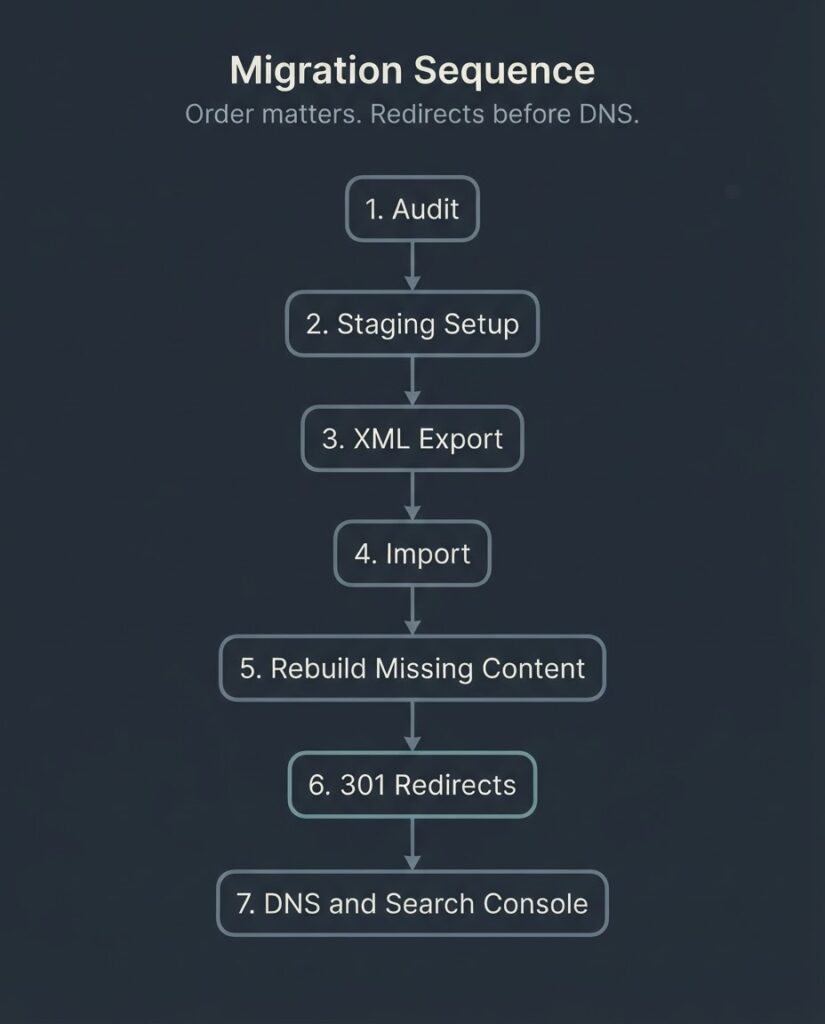
Step 1: Audit before you touch anything. Crawl your Squarespace site with a tool like Screaming Frog or Sitebulb. Export a full list of every live URL, including their current traffic from Google Analytics 4 (GA4) and any backlinks pointing to them from external sources. This list is your migration map. Without it, you cannot verify that every 301 redirect is in place at launch.
Step 2: Set up WordPress hosting on a staging environment. Do not launch directly. Set up your WordPress install under a temporary domain or subdomain, configure your chosen theme, and install your core plugins before importing any Squarespace content. Critical plugins to install before content import: an SEO plugin (Rank Math is our recommendation for its schema depth), a redirect manager, a security plugin, and your caching or performance layer.
Step 3: Export from Squarespace. Go to Settings > Advanced > Import/Export and select the WordPress export option. Download the XML file. Note the date; Squarespace URLs in the XML will point to your Squarespace-hosted images, and those URLs are only valid as long as your Squarespace account remains active.
Step 4: Import into WordPress. Use the WordPress Importer tool under Tools > Import. Select the XML file. Enable “Download and import file attachments” during the import. Be aware that image import can time out on slow hosting. If this happens, use the Auto Upload Images plugin as a fallback to batch-fetch images post-import.
Step 5: Rebuild what the XML missed. For every page type that did not export, rebuild manually. This includes product pages (if applicable), portfolio items, events, and any pages that relied on custom CSS. This step is where migration timelines most often expand beyond the original estimate.
Step 6: Build and test all 301 redirects before going live. Map every old URL to its WordPress equivalent. Use a plugin like Redirection or set rules in your .htaccess file. Test every redirect before you flip DNS. A missed redirect on a high-traffic page is a rankings problem that may take months to recover from.
Step 7: Point your domain, submit your sitemap, and monitor. Update your DNS records to point to your WordPress host. Submit your new sitemap in Google Search Console. Use the Change of Address tool in Search Console. Set up GA4 on your new WordPress site and verify both the old Squarespace property and the new WordPress property separately in Search Console. Monitor the Index Coverage report daily for the first two weeks.
When a Migration Makes Sense and When It Doesn’t
There is a version of this decision that is easy. If you are running an e-commerce store paying Squarespace’s 3% transaction fee on $15,000+ per month in revenue, the math pays for a professional migration inside the first year. If you have a content-heavy blog with real domain authority and an SEO strategy that Squarespace’s schema limitations are blocking, the long-term return on migration is clear.
The harder version is the five-page portfolio site with no organic traffic, no backlinks, and a founder who learned Squarespace in a weekend. That site probably should not migrate. WordPress requires hosting management, plugin updates, and occasional debugging. Squarespace abstracts all of that. The tradeoff is flexibility versus maintenance overhead, and for low-complexity sites, the overhead is not worth it.
Our team spans Bangladesh and the US, which means when a US client hands off a migration project at the end of their business day, the work moves forward before they wake up. That compresses timelines, especially for multi-step migrations where each phase has dependencies. It also reduces the total cost compared to a purely US-based agency doing the same scope.
FAQ
How long does a Squarespace to WordPress migration take?
A basic migration of a brochure site (10 to 25 pages, no e-commerce) typically takes three to seven business days for an experienced developer working at a managed pace. Add time for content QA, redirect testing, and the client review cycle. A migration that includes a custom WordPress theme design adds four to eight weeks on top of the migration work itself.
Will I lose my Google rankings when I migrate from Squarespace to WordPress?
Not permanently, if redirects are set up correctly. Permanent 301 redirects pass link equity to the new URLs, and Google’s own documentation confirms they do not cause PageRank loss. You should expect some ranking fluctuation during the two-to-six week re-indexing period. Pages that had no 301 redirect set up, though, can lose rankings quickly and take months to recover.
Does Squarespace export everything to WordPress?
No. The Squarespace XML export covers blog posts, standard pages, gallery pages, and text/embed blocks. It does not export product pages, product images, portfolio pages, audio files, video files, form data, or custom CSS. E-commerce operators face the most significant manual work in a migration.
How much does it cost to hire someone to migrate my Squarespace site to WordPress?
For a professional agency handling a standard business site with no custom redesign, the market range is roughly $800 to $2,000. That scope typically includes content migration, redirect mapping, SEO plugin setup, and a starter theme. A custom WordPress theme build brings the range to $3,500 to $9,000+. A WooCommerce rebuild from a Squarespace store starts around $2,500 and scales with product catalog size.
Can I keep my domain name when I move from Squarespace to WordPress?
Yes. Your domain is separate from your Squarespace subscription. You can update your DNS records to point your existing domain to your new WordPress host at any time. If your domain was registered through Squarespace, you transfer it to an external registrar first (Namecheap, Cloudflare Registrar, and Google Domains are common choices). The transfer itself takes up to seven days.
Is WordPress harder to use than Squarespace after the migration?
The WordPress admin dashboard has a steeper learning curve than Squarespace’s drag-and-drop interface. The Gutenberg Block Editor is accessible enough for most non-technical founders to manage ongoing content updates. Where WordPress gets more demanding is maintenance: you are responsible for plugin updates, hosting performance, and security. Managed WordPress hosting (from providers like WP Engine, Kinsta, or Flywheel) handles most of that infrastructure layer and is the right choice for a business site that cannot afford downtime.
Ready to Scope Your Migration?
If you are at the point where you know a migration makes sense but want to understand exactly what it would cost for your specific site, send us your URL. We will review your current Squarespace setup and give you a specific scope, not a range that spans ten thousand dollars. No commitment required.
Get a scoped migration quote from BetaTech
mmerce operators face the most significant manual work in a migration