
Webflow is a good platform for the right site. The problem is that a site that fits Webflow well at launch often outgrows it, and the signals tend to arrive gradually: a developer tells you extending your CMS requires enterprise pricing, your e-commerce needs outpace Webflow’s native store, or you realize your hosting and CMS budget is now fixed to a single vendor with no competitive alternative.
A Webflow to WordPress migration is not technically complex for someone who does it regularly. But it carries three real risks: you can lose search rankings if the redirect strategy is wrong, you can lose content if the export process is handled carelessly, and you can end up with a WordPress site that replicates the structural limitations you were trying to escape in the first place. This guide covers all three.
A Webflow to WordPress migration handled professionally typically takes 3 to 8 weeks and costs between $1,500 and $8,000 depending on site size, content volume, and whether a new theme is required. The primary technical risk is SEO: improperly configured 301 redirects can cause temporary ranking drops that take 6 to 12 weeks to recover. Content exports from Webflow produce CSV files, not the XML format WordPress imports natively, which requires a migration plugin such as WP All Import as an intermediate step.
Why Businesses Move From Webflow to WordPress
The honest answer is that Webflow is not the wrong choice for most of the sites that were originally built on it. It is a capable platform for visually polished brochure sites and content-light marketing pages. The case for leaving it becomes clearer in specific conditions.
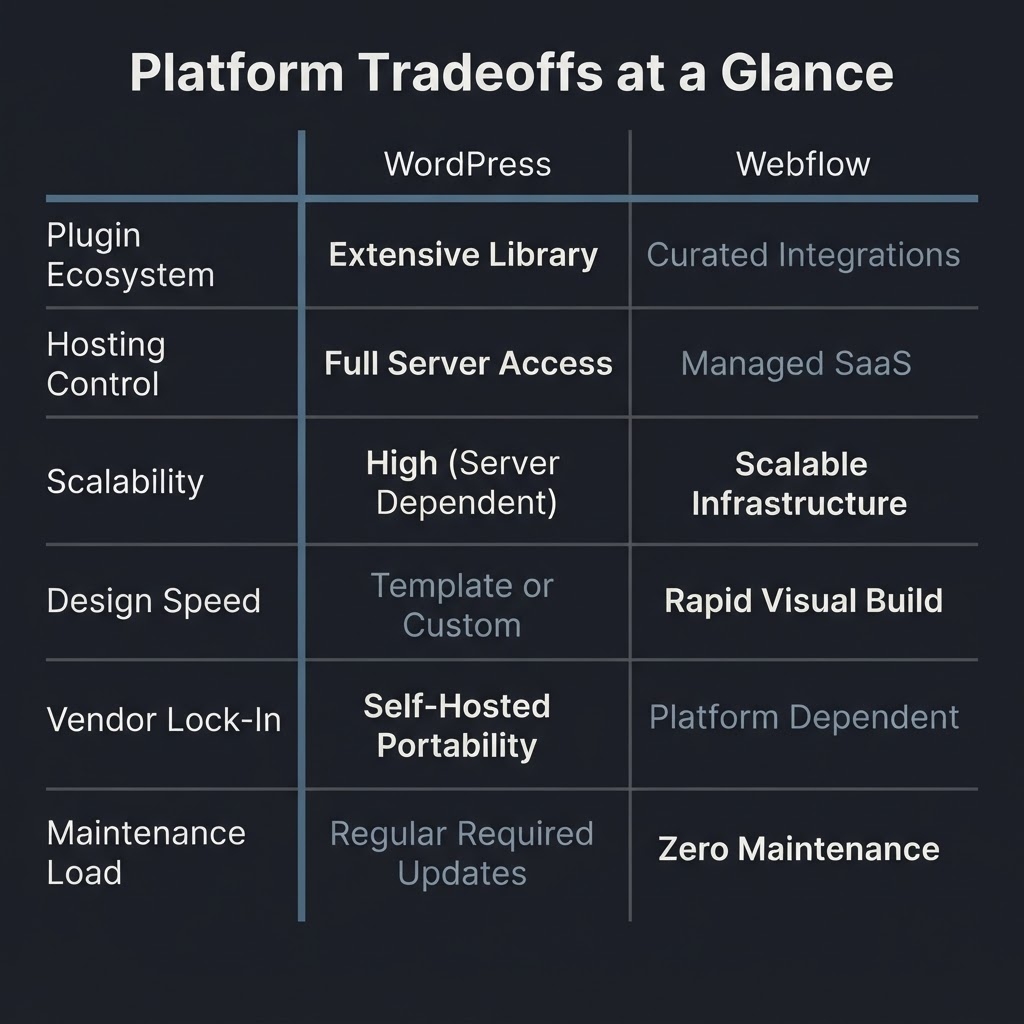
Webflow’s CMS has historically capped collections at 10,000 items, a hard ceiling that forces workarounds or an upgrade to Enterprise pricing once a site’s content library grows. In May 2026, Webflow updated its pricing structure, combining its old CMS and Business plans into a single Premium plan at $25 per month (billed yearly) or $39 per month (monthly), and raised the CMS item ceiling to 20,000 items. That is an improvement, but it is still a ceiling, and it is one Webflow controls. WordPress has no equivalent limit because your CMS is your own database on your own server.
The second reason is the plugin ecosystem. WordPress powers 59.1% of all websites whose CMS is known, and that installed base has produced over 60,000 plugins covering everything from advanced membership logic to complex booking systems to WooCommerce. Webflow’s app ecosystem is growing but is not comparable in depth for functional complexity.
The third reason is vendor dependency. On Webflow, your hosting, CMS, and site editor are all the same product. That is convenient until pricing changes, new feature gates appear, or you want a hosting provider with a different performance or support tier. WordPress is free and open-source software, and your choice of hosting is entirely separate from your choice of CMS.
If your site has fewer than 20 pages, no complex data requirements, and no one on your team who needs to extend functionality over time, Webflow is still a defensible choice.
We tell that to prospects who ask. The calculus changes when content volume, e-commerce complexity, or long-term cost of ownership are on the table.
What the Migration Actually Involves
This is where most tutorial content gets overly optimistic. The six-step process you will find in most guides describes a smooth scenario. Here is a more accurate breakdown of what actually requires work.
Step 1: Content inventory and export from Webflow
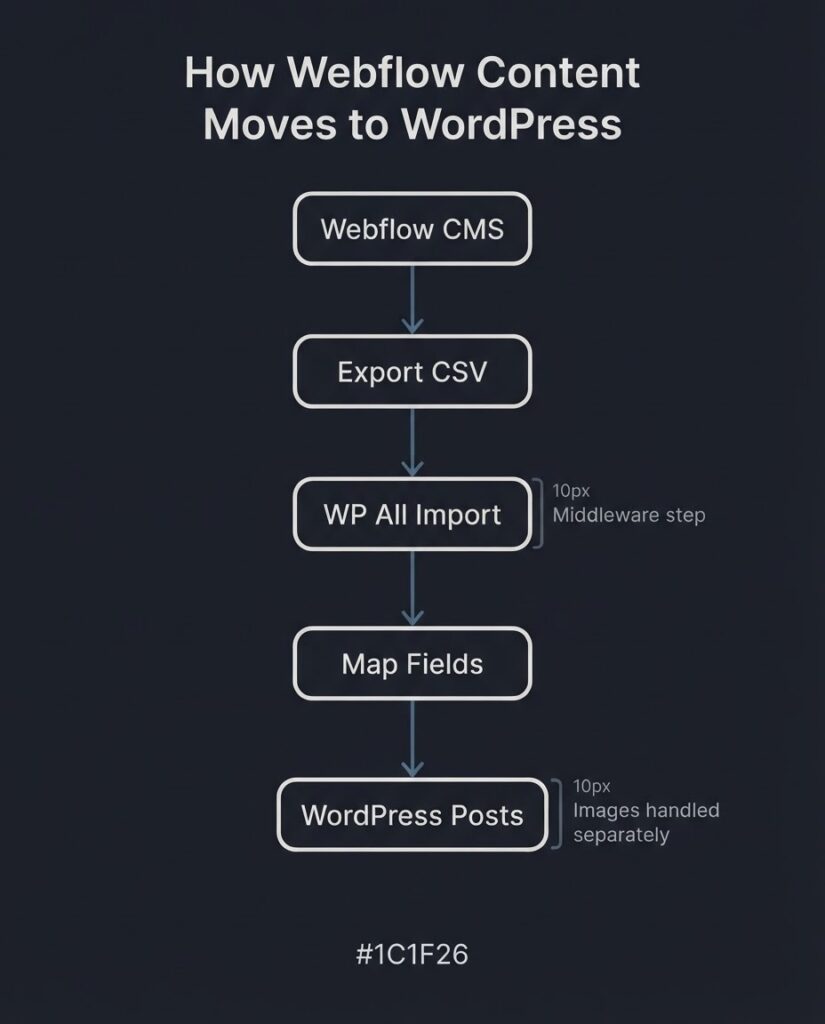
Webflow exports CMS collection content as CSV files. It does not export in XML, which is the native import format for WordPress. Static pages are not exported at all from Webflow’s CMS panel. What you actually get is a spreadsheet of your dynamic content records. If you have blog posts, product entries, or team member profiles in a Webflow CMS Collection, those come out as CSV rows.
Static pages, custom layouts, and design elements do not transfer. Your Webflow design is Webflow-specific. You are moving content, not the site.
According to Webflow’s own help documentation on CMS content import and export, you can export any CMS Collection as a CSV, which is useful as a backup and as the source file for your WordPress import. Images are not included in the export. You will need to handle media separately, either by migrating manually or using a plugin like Auto Upload Images that reads image URLs from your imported content and pulls them into WordPress.
Step 2: WordPress setup and theme decision
You need a hosting provider and a WordPress installation before you move a file. Managed WordPress hosting from providers like Kinsta, WP Engine, or Cloudways typically runs $25 to $70 per month for a small to mid-size business site. That is more than Webflow’s Basic plan but competitive with Webflow’s Premium tier once you factor in the flexibility you gain.
The theme decision matters more than most people realize. If you install a generic free theme, you are not gaining much over what Webflow provided. The real value of the migration comes from commissioning a custom WordPress theme built to your brand standards, one that uses the block editor (Gutenberg) or a well-maintained page builder, and that is structured for long-term editability by your team.
Step 3: Content import via WP All Import
The WP All Import plugin maps your CSV columns to WordPress fields (post title, body, slug, publish date, category, custom fields) through a drag-and-drop interface. It is not a one-click process. Each collection type requires its own import configuration, and fields that contain rich text or embedded HTML require manual cleanup. A 200-post blog migrates more cleanly than a 200-product catalog with variant logic.
Step 4: SEO preservation and redirect configuration
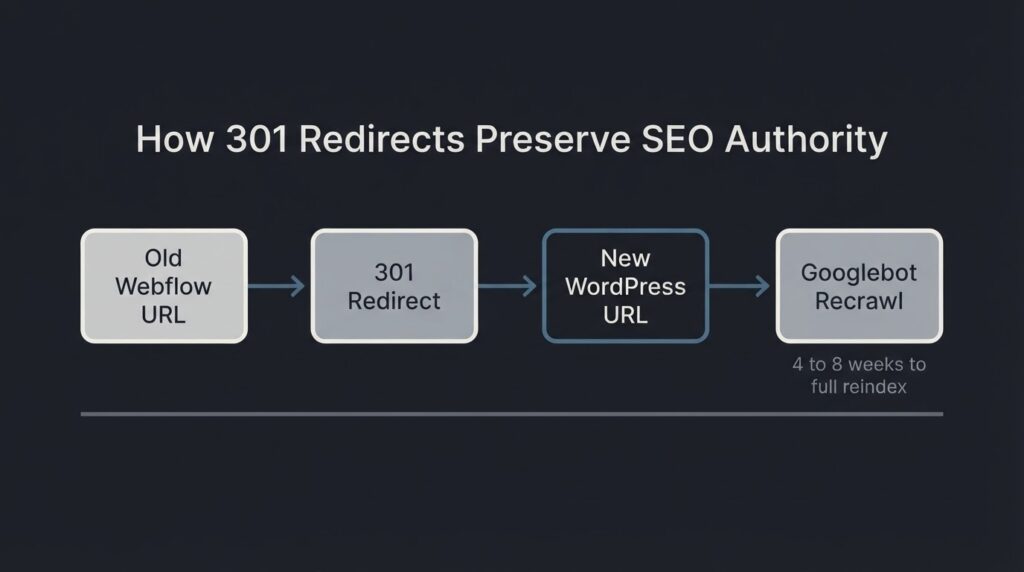
This step is where professional help justifiably earns its cost. You need a complete URL map: every Webflow URL on the old site matched to its WordPress equivalent. If your URL structure changes during the migration, every old URL needs a 301 redirect to the new one. A 301 redirect tells Google permanently that the page has moved, and according to Google’s Search Central documentation, 301 and 308 permanent server-side redirects do not cause a loss in PageRank. What does cause problems is chaining redirects, leaving 404 errors on formerly indexed pages, or failing to update your sitemap.xml in Google Search Console after the migration.
Google recommends keeping redirects live for at least one year. Plan to submit a Change of Address notification in Search Console after the migration is complete. Expect some ranking fluctuation during the 4 to 8 weeks it takes Googlebot to recrawl and reindex the new site structure.
Step 5: Domain and DNS transfer
Your domain currently points to Webflow’s nameservers. After the WordPress site is ready and tested on a staging environment, you update your DNS settings to point to your new WordPress host’s servers. DNS propagation typically takes 24 to 48 hours. During this window, the old Webflow site and new WordPress site may be accessible from different locations simultaneously. Do not take the Webflow site offline until propagation is confirmed.
Step 6: Post-migration audit
After launch, run a full crawl using a tool like Screaming Frog or Ahrefs to confirm every old URL either resolves correctly on the new site or redirects properly. Check Google Search Console for crawl errors, 404s, and any manual actions. Monitor Core Web Vitals in Search Console for the first 4 to 8 weeks. A well-optimized WordPress site built on fast managed hosting can match or improve on your Webflow performance baseline, but only if the theme is clean and images are optimized.
What Does a Webflow to WordPress Migration Cost?
This is the question every article avoids answering specifically, so here is an honest breakdown by scenario.
| Scenario | Site Size | Work Involved | Approximate Cost |
| DIY migration | Under 20 pages, no CMS | Self-managed with plugins | $0 to $150 (tools and hosting setup) |
| Small site with agency help | 10 to 30 pages, basic blog | Theme selection, CSV import, redirect setup | $1,500 to $3,500 |
| Mid-size site with custom theme | 30 to 100 pages, CMS-heavy | Custom theme, full content migration, redirect audit, SEO handoff | $3,500 to $8,000 |
| E-commerce migration to WooCommerce | Store with 50 to 500+ products | Full build, product data migration, payment gateway configuration | $6,000 to $15,000+ |
These are market ranges, not BetaTech quotes.
What drives the spread: the number of content types being migrated, whether a new custom theme is part of the scope, how complex your URL structure change is, and whether the engagement includes post-launch SEO monitoring. Ask any agency to break their quote down along those four lines. If they cannot, the number is a guess.
The 2024 Web Almanac by HTTP Archive found that 40% of WordPress sites pass Core Web Vitals on mobile, up from 28% in 2023. That improvement is meaningful for SEO, but it does not happen automatically after a migration. It requires deliberate decisions about hosting performance, image optimization, and theme architecture. A migration that delivers a slow WordPress site is worse than staying on Webflow.
The SEO Risk You Cannot Ignore
Most migration guides treat SEO as a checklist item. It is actually the most consequential part of the project.
The core risk is simple: if Google cannot match your old URLs to your new URLs through proper 301 redirects, it treats your new site as a new site. Your domain authority transfers through redirects, but only when they are implemented server-side, map correctly, and are not chained through multiple hops. Google can follow redirect chains up to 10 hops, but it recommends you keep chains to 3 or fewer. Each additional hop adds latency and introduces a point of failure.
Specific steps that reduce SEO risk before, during, and after migration:
Before migration: export a full crawl of your Webflow site so you have a documented list of every indexed URL. Cross-reference with your Google Search Console coverage report to identify which pages have earned organic impressions.
During migration: configure WordPress permalinks to match your Webflow URL structure wherever possible. The Redirection plugin handles 301 configuration inside WordPress without requiring server-level access. Once redirects are live, test a sample set of old URLs with the URL Inspection tool in Search Console.
After migration: submit your updated sitemap.xml in Google Search Console and use the Change of Address tool if your domain itself changed. Monitor the Coverage report weekly for the first month. A short-term traffic dip of 5 to 15 percent during the indexing transition is normal. A sustained drop beyond 8 weeks is a signal that redirects or canonical tags need attention.
The HTTP Archive 2024 Performance chapter notes that 74% of mobile sites had good INP scores in 2024, up from 55% in 2022. Moving to a well-configured WordPress setup that prioritizes performance from the start of the migration puts you in a structurally better position than many sites that have never been performance-audited.
Webflow vs. WordPress After Migration: What Actually Changes
The practical differences between running your site on Webflow and running it on WordPress after a properly executed migration:
Content editing: WordPress’s block editor (Gutenberg) is editor-friendly and does not require a designer for routine content updates. Webflow’s editor is more constrained for non-designers wanting to make layout changes. For editorial teams updating text and images regularly, WordPress is easier.
Hosting control: On WordPress, you choose your host, upgrade or downgrade plans independently of your CMS, and configure Cloudflare, CDN settings, or server-level caching without touching your content layer. That separation matters when performance optimization or cost control is a priority.
Plugin depth: If you need HubSpot integration, a custom membership system, a complex booking engine, or a multi-currency WooCommerce store, WordPress has a plugin for it. Webflow requires custom code or API integrations for most of those scenarios.
Design flexibility trade-off: Webflow’s visual editor is genuinely faster for pure design work than building in WordPress without a page builder. If your team’s primary activity is designing and redesigning pages, and you do not have a developer to maintain a codebase, Webflow may remain the better tool. This is a real tradeoff, not a dismissal.
Maintenance: WordPress sites require plugin and theme updates, security monitoring, and occasional database optimization. Webflow handles that at the platform level. A managed WordPress hosting plan includes automatic core updates and backup schedules, which substantially reduces the maintenance gap, but it does not eliminate it.
What We Actually Do on These Projects
Our team spans Bangladesh and the US, which means a migration project in progress at the end of a US business day often has QA, redirect verification, or theme revisions completed before the next morning. That compresses the revision cycle on time-sensitive launches without increasing the cost of delivery.
We build in WordPress the majority of the time. We have also told prospects to stay on Webflow when their use case fits it. A five-page services site with no CMS requirements and a team that does not want to manage hosting is not a strong migration candidate, and we say that before taking a deposit.
If you are evaluating whether to migrate, the most useful first step is not a quote. It is an audit of your current site’s indexed URL count, organic traffic exposure, and content structure. That audit tells you how complex the redirect map will be and whether a new theme is necessary or optional.
FAQ
Will migrating from Webflow to WordPress hurt my Google rankings?
A short-term ranking fluctuation of 5 to 15 percent during the 4 to 8 week re-indexing period is normal and not a cause for alarm. Sustained ranking loss beyond 8 weeks is usually a sign of broken redirects, missing canonical tags, or a sitemap that has not been updated in Search Console. The risk is manageable with proper pre-migration planning, not avoidable by staying on Webflow.
Can I keep my domain when I switch from Webflow to WordPress?
Yes. Your domain is registered with a separate registrar (Namecheap, GoDaddy, Cloudflare, or similar) and is independent of your hosting platform. You update your DNS nameservers to point to your new WordPress host after the site is ready. Webflow’s hosting contract ends when you cancel your plan; your domain remains yours regardless.
Do I need to hire a developer to do this migration?
For a simple brochure site with under 20 static pages and no complex CMS content, a technically competent non-developer can handle the migration using managed WordPress hosting with one-click install, a premium theme, and WP All Import for any content CSV files. For anything involving custom URL structures, large content libraries, WooCommerce setup, or sites with meaningful organic search traffic, professional help reduces the SEO risk enough to justify the cost.
How long does a Webflow to WordPress migration take?
A small business site with 10 to 30 pages and a basic blog typically takes 3 to 4 weeks when handled by an agency. A mid-size site with 50 to 150 pages and a custom theme is 5 to 8 weeks. E-commerce migrations involving product data, payment configuration, and order history take 8 to 16 weeks depending on catalog complexity. These timelines include design, development, content migration, QA, and redirect auditing.
What content can and cannot be exported from Webflow?
Webflow allows you to export CMS Collection content as CSV files. That covers dynamic content like blog posts, team members, portfolio entries, and product records. What does not export: static pages, custom layouts, design components, animations, and embedded media files. Those require manual rebuilding in WordPress. Images referenced in CMS content can be pulled into WordPress using a plugin that fetches remote URLs, but they are not included in the CSV export itself.
What happens to my Webflow hosting after I migrate?
Your Webflow site stays live until you cancel your plan and update your DNS to point to WordPress. There is no automatic cutover. The recommended process is to build and fully test the WordPress site on a staging URL, complete the DNS switch, confirm propagation, verify redirects, and then cancel your Webflow plan. Do not cancel Webflow hosting before you have confirmed the WordPress site is live and indexed.
Ready to scope your migration?
If your Webflow site has meaningful organic traffic, a CMS with more than a few dozen items, or an e-commerce component you want to move to WooCommerce, the right starting point is a pre-migration audit, not a quote. We review your current indexed URL structure, your content volume, and your SEO exposure, and we give you a scope document that tells you what the migration actually involves before any work begins. Get a migration scoped and quoted at betatech.co/contact-us/.